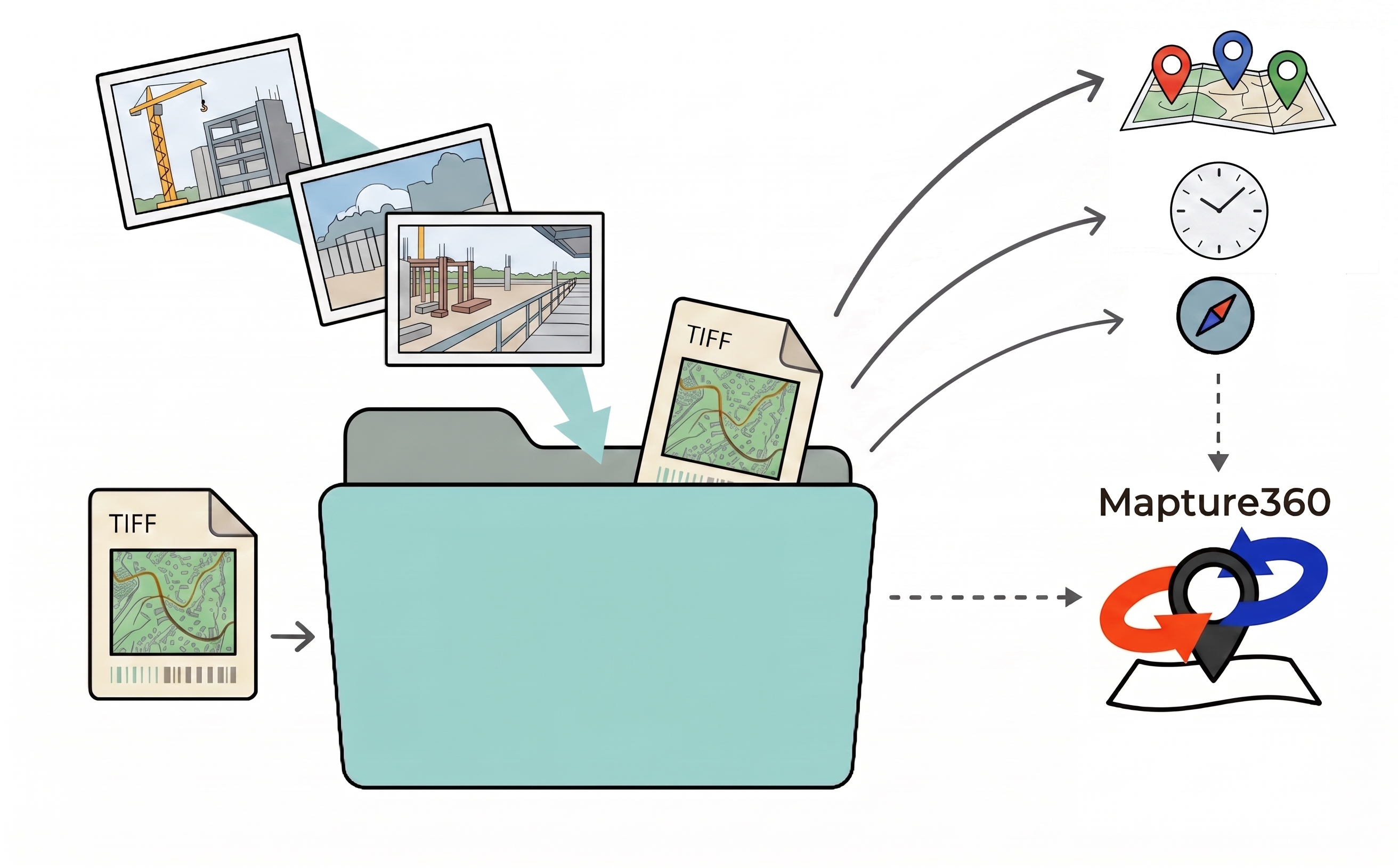
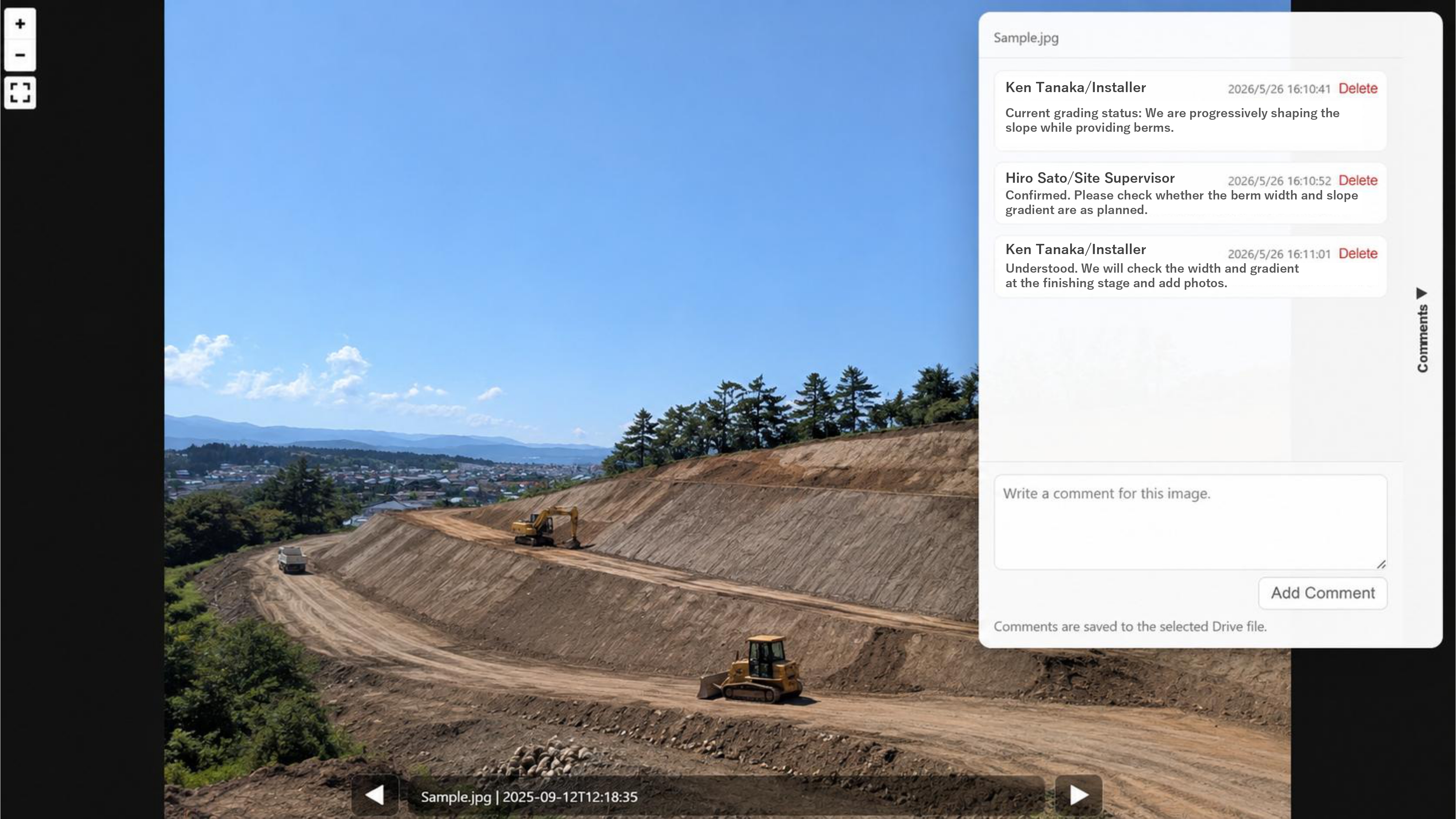
Select photos and drawings from Google Drive. Mapture360 reads EXIF metadata and creates a map-based viewer for location, date, direction, and comments. No re-upload to an external service is required.
*Redirects to the official Google Store. No credit card required, zero automatic billing.
Subject to IT restrictions? Contact us for custom demos & enterprise licensing.Common Site Photo Problems
After photos are captured, teams often spend time finding where and when each image was taken, and which direction it shows. Mapture360 is designed to reduce that review effort inside Google Drive.
Photos are captured, but teams later need to inspect filenames and folders just to confirm where and when they were taken.
As photos from partners and survey companies accumulate, finding the right image inside shared folders becomes slow.
Teams need to understand site conditions remotely, including where photos were taken and which direction they face.
Sensitive construction and survey photos should be managed in the existing Google Drive environment, without re-uploading them elsewhere.
Teams may not need a large dedicated system, but still want to review photos through a map and calendar.
How Mapture360 Organizes Review
Mapture360 reads 360 photos, standard images, and GeoTIFF drawings from Google Drive, then combines location, timestamp, direction, and comments in one viewer. Teams can keep their current Drive workflow while improving site review speed.
Capture site photos using a 360° camera or smartphone with GPS location settings enabled. Simply turn on the setting to get ready.
Upload photos and GeoTIFF blueprints to your existing Google Drive. Mapture360 automatically extracts metadata to complete the mapping.
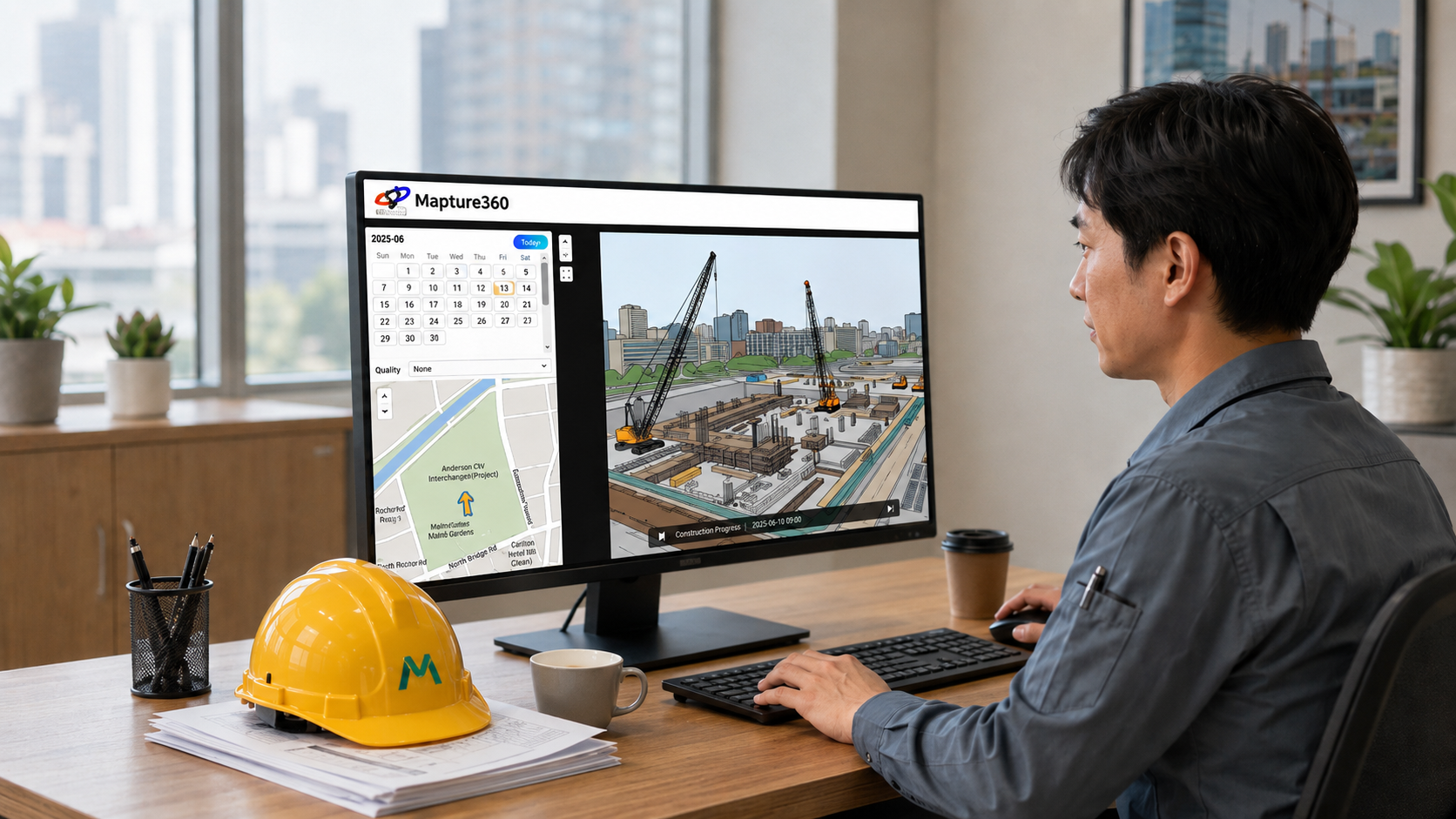
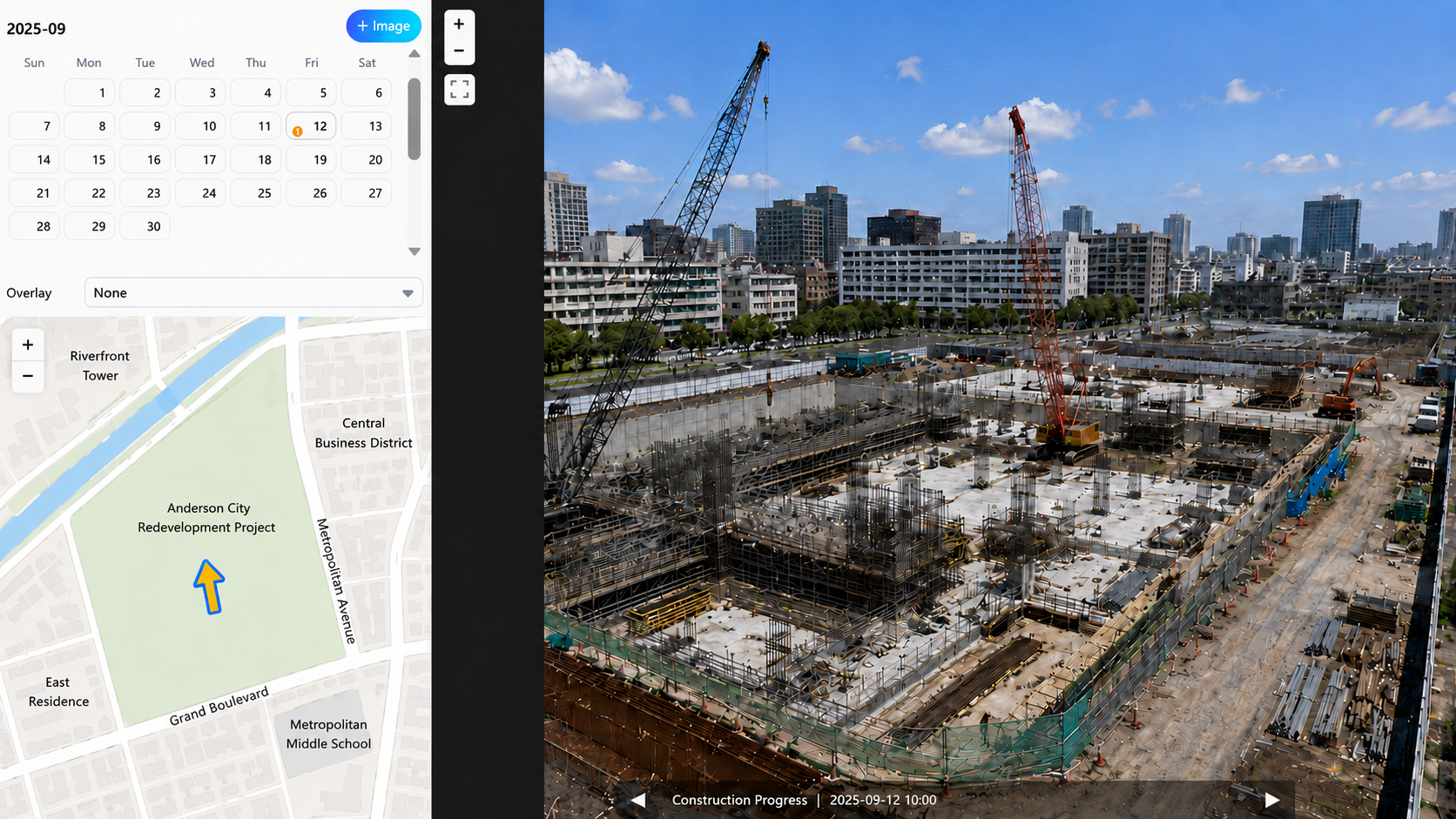
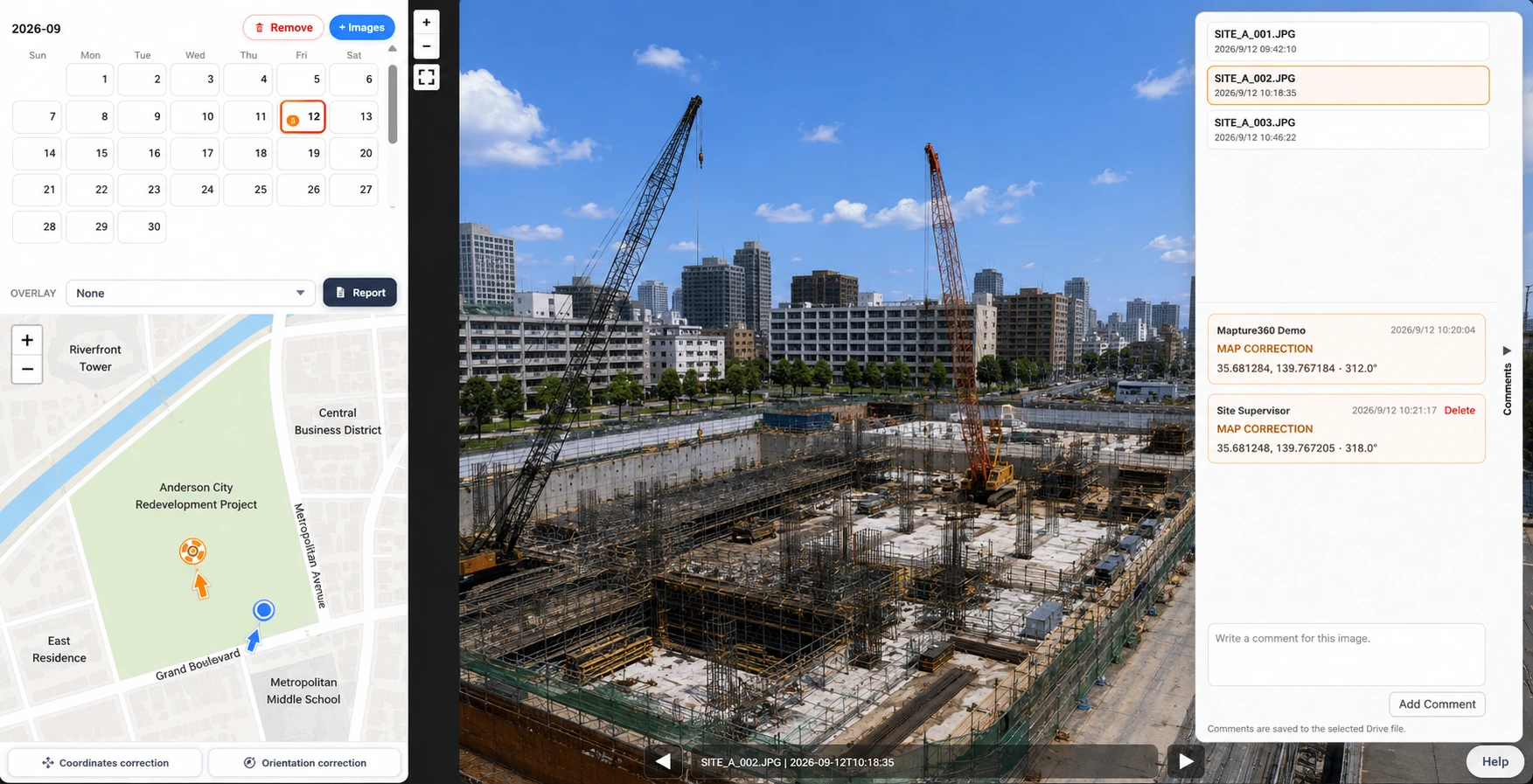
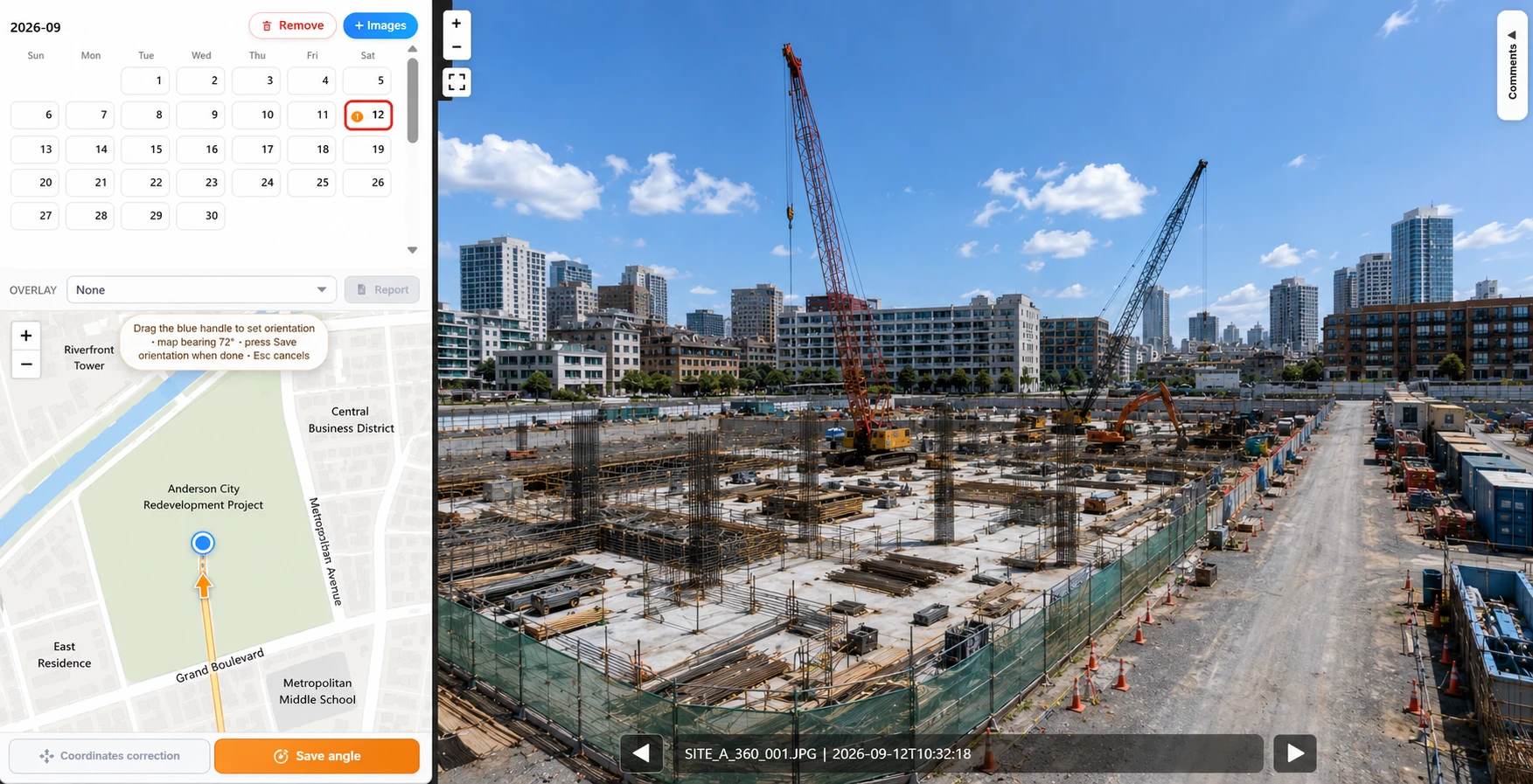
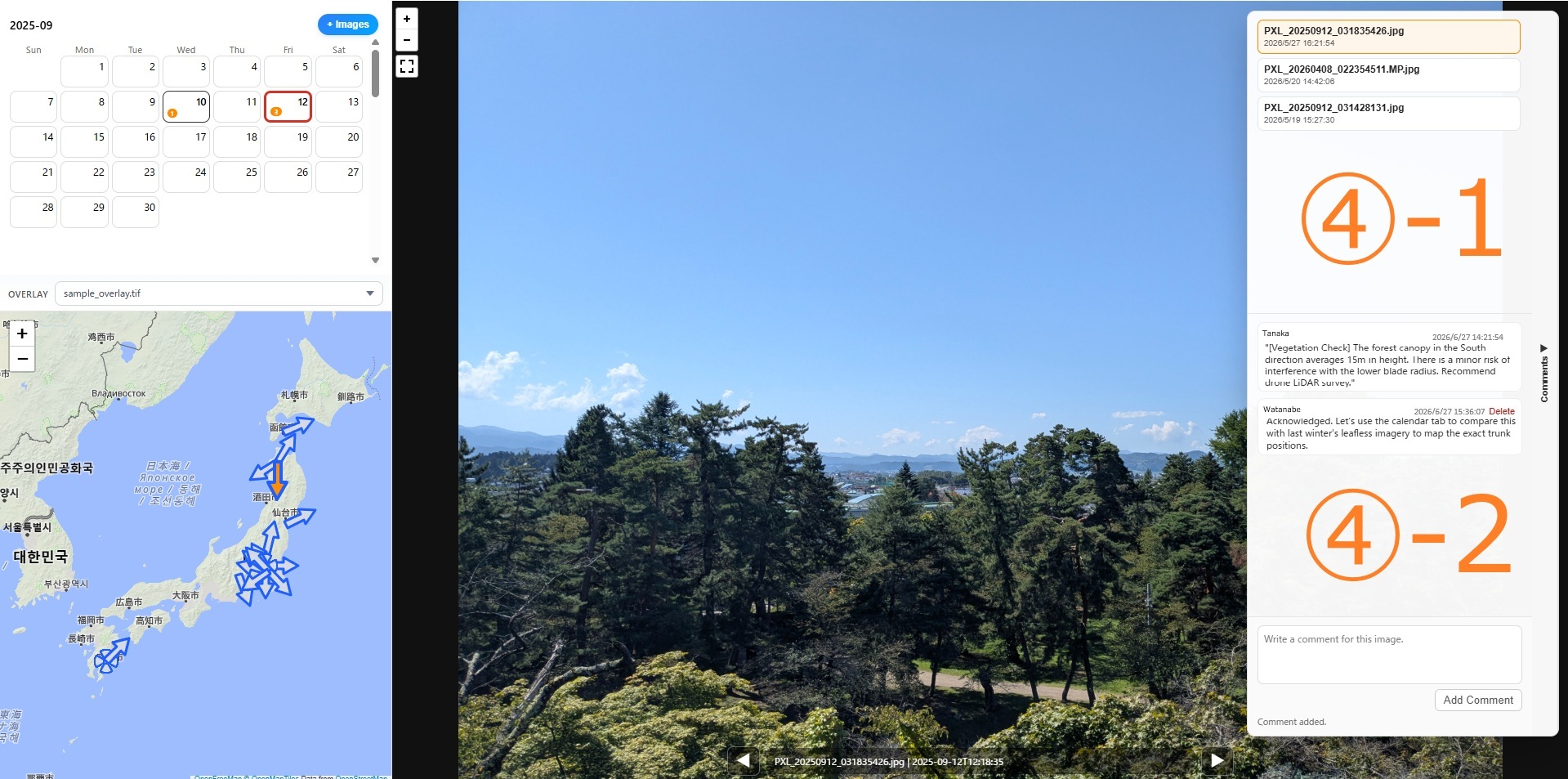
Consolidates Calendar, Map, 360° View, and Comments into a single screen. Intuitive review enables immediate site assessment and clear team communication while verifying exact location and time.
Pan and look around the entire site by dragging or swiping the 360° image. Smooth zoom support allows detailed inspection of specific construction areas.
Extracts coordinates and timestamps to map images accurately. Simply slide the timeline to review progress and trace site changes at the exact same location over time.
Displays arrows on map pins when photos include compass metadata. When reviewing past site visits, you can understand which direction the camera was facing.
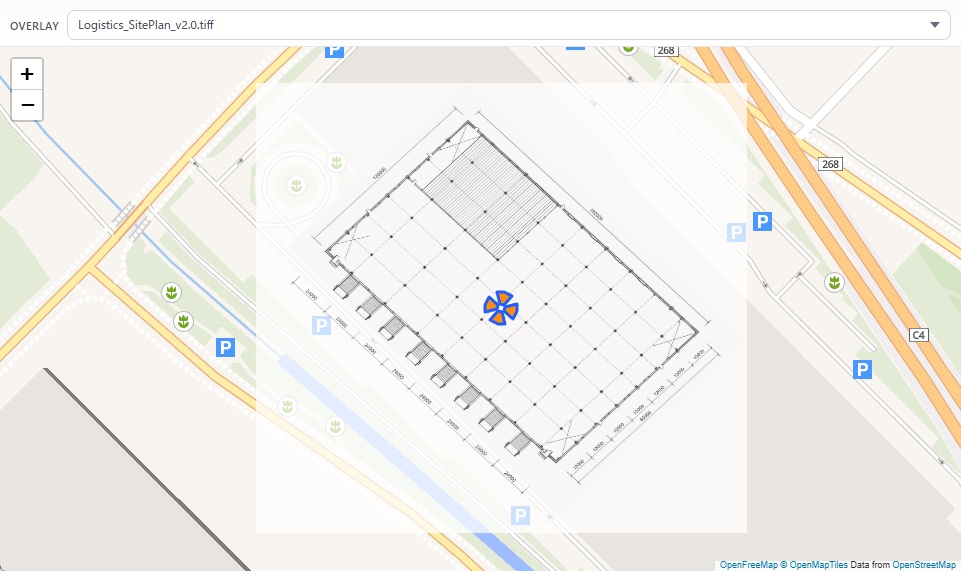
Import construction drawings or planning drawings exported as GeoTIFF files to overlay them on the map based on coordinate data. By viewing design information and site photos on the same screen, teams can review progress and site conditions more smoothly.
Anchor comments directly to specific points that need review in an image. This helps site teams and back-office staff communicate instructions and confirmations smoothly, even when working remotely.
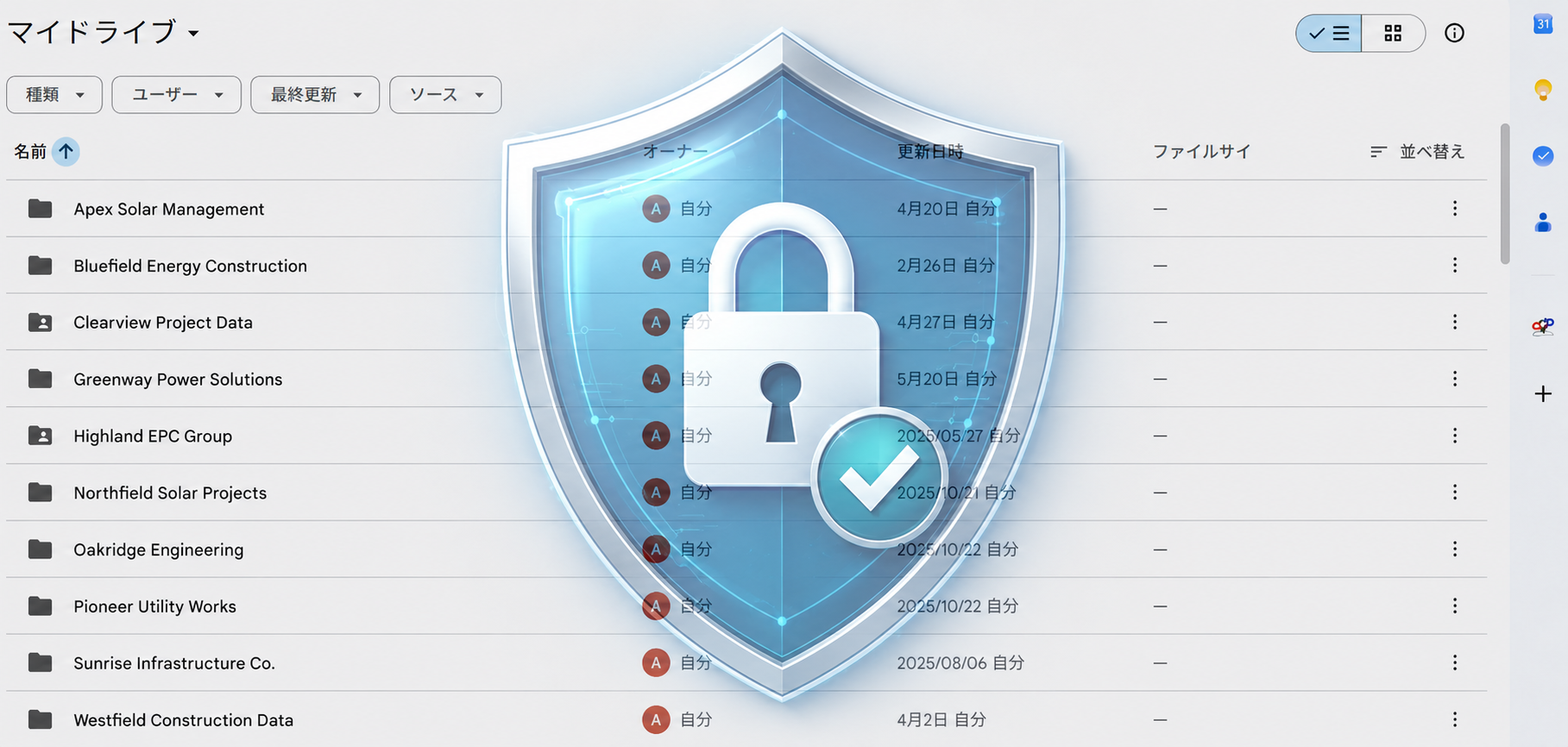
No need to upload sensitive blueprints or photos to external third-party servers. Because Mapture360 accesses files directly from your organization's Google Drive in the browser, teams can avoid unnecessary data leakage risks.
Mapture360 is especially useful when site photos are submitted, reviewed, and shared mainly through Google Drive.
Track changes over time while confirming photo locations across large sites.
Compare past photos from the same location to review progress and site conditions.
Organize inspection photos by place, date, and direction for easier stakeholder review.
Review submitted photos through a map and calendar instead of searching folders manually.
Understand remote site conditions with photo location, direction, and comments before visiting in person.
Capture site photos with GPS enabled on a 360 camera or smartphone.
Store photos and GeoTIFF drawings in the project folder and keep existing sharing rules.
Select files with Google Picker to sync the map, calendar, and viewer.
Review progress changes, add pinpoint comments, and share context with stakeholders.
Pricing Plans
No upfront cost, no credit card required. Install directly from Google Workspace Marketplace to get started instantly.
This service is licensed per individual Google Account. Sharing a single Google Account among multiple users is contrary to Google Workspace best practices. For security purposes and clear activity tracking (auditing), we highly recommend that each user access the service via their own individual Google Account.
*Redirects to the official Google Store. Install securely in your Drive workspace with a 7-day free
trial.
Subscriptions can be purchased directly within the add-on after installation if you choose to
continue.
* All payments are processed in Japanese Yen (JPY).
* For enterprise-wide deployment, customized security review questionnaires, invoicing support,
or custom integration inquiries, please Contact Us
directly.
Mapture360 runs on Google Chrome, Microsoft Edge, Mozilla Firefox, and Safari.
drive.google.com) via a mobile browser, click the ☰ menu at the top-left
to select "Desktop Version" (or check "Request Desktop
Site" in browser settings) before launching.
Upload your work files to a designated folder on Google Drive using the following methods:
Ctrl + A / Cmd + A to select all,
you must scroll down to the bottom of the list first to load
all items into the view. Otherwise, unrendered files will be skipped from
selection.
Once your files are loaded, navigate and manage your workspace using these 4 primary modules:
+/- buttons or mouse wheel
to zoom.
Blue (Arrow)
Inactive shooting locations (displays camera direction)
Orange (Arrow)
Active shooting location currently displayed in the Main Viewer
360° Icon
360-degree panorama photos without embedded compass/direction data
Dot Icon
Standard photos without compass data, or during data loading phase
Mapture360 does not automatically scan the entire Google Drive. It accesses only the files that users explicitly select in Google Picker. By avoiding unnecessarily broad permissions, it supports operations aligned with internal data management policies.
Yes. You can install the add-on directly from Google Workspace Marketplace and try all features free for 7 days. No credit card is required, and there are no charges if you cancel during the trial period.
There is no automatic transition to a paid subscription or automatic billing when the 7-day
free trial ends. If you launch the add-on after the trial has expired, a "License
Required" error screen will be displayed, stating: "A valid license is
required to use this tool. Please start a free trial or select a subscription
plan."
To continue using Mapture360, click the "Get License" button within the
add-on screen and select your preferred subscription plan (monthly or annual). Once
activated, you can seamlessly resume your work with all your existing comments and drawing
configurations preserved.
If your Google Workspace administrator has restricted direct installations, we can host a demo session or assist in providing the necessary steps for your IT team to approve the app. Please Contact Us for assistance.
Mapture360 licenses are authorized per individual Google Account. Sharing a Google Account among multiple users is not only against Google Workspace best practices but also raises security concerns and makes it impossible to track clear user audit trails (e.g., identifying who left which comments/decisions). To ensure secure construction management and clear accountability, we highly recommend utilizing individual Google Accounts for each active user.
There may be a Google Account conflict. This frequently happens if you are logged into multiple Google Accounts on the same web browser. Please verify that the Google Account authorized for Mapture360 matches the account that has permission to access the shared Google Drive folder. Try logging out of the add-on and re-authorizing with the correct account.
Mapture360 is currently provided as an add-on for files stored in Google Drive and is designed around existing Google Workspace permissions and shared folders.
Yes. Both standard photos and 360 panoramic photos are supported. GPS metadata is required for map placement.
Photos captured with 360 cameras like RICOH THETA must be exported using the official
manufacturer software or mobile app.
When exporting, ensure the "Include Metadata (location and zenith
correction)" option is enabled and save as JPEG (.jpg) format
before uploading to Google Drive. Simply changing the file extension manually on your PC
(e.g. from .heic/.png to .jpg) will corrupt the spherical metadata, and the panoramic viewer
will not function.
Mapture360 automatically analyzes GPS metadata in photos to map
them.
If any uploaded photos lack location data, they will be listed as "No Location
Metadata" in the center of the viewer upon loading. For convenience, these photos will
be mapped to the South Pole (Latitude -90 / Longitude 0) on the map, allowing you to
select them directly.
If you want to display pins at their actual shooting locations, please check your mobile
settings below.
Settings
>
Privacy
& Security >
Location
Services >
Camera.
Set to "While Using the App" and toggle "Precise Location" to ON.This is determined by the accuracy of the GPS data, or a GPS orientation tag (Ref) error.
1) Minor offsets: Accuracy deviations (of several meters) depend entirely on
the GPS performance of your smartphone or camera, and surrounding signal conditions (indoors,
underground, high-rise buildings, etc., can severely degrade GPS signals).
2) Mapped overseas (e.g. in the ocean near Africa): Photos taken with some
third-party camera apps may have corrupt Ref tags (N/S, E/W). Retake photos using the native
camera app or correct the GPS metadata before uploading.
This occurs when the photo contains location coordinates (GPS) but lacks compass direction metadata. This happens when the device used lacks an electronic compass sensor or if direction tags were not saved. For such photos, the system displays a circle pin without arrows. You can still view the photo and 360 view normally.
Please check for the following common issues:
1) Non-JPEG format: Only JPEG (.jpg / .jpeg) is supported (PNG, WebP, or HEIC
are not supported).
2) File size limit: Images over 20MB will cause timeouts. Keep image sizes to a
few megabytes for smooth performance.
3) GeoTIFF blueprint error: Blueprints with excessively high resolution exceed
Google API execution limits. Lower the resolution during export.
By default, iPhones save photos in the "HEIC" format to reduce file sizes. Since Mapture360 **only supports JPEG (.jpg / .jpeg) format**, we recommend changing your iPhone camera settings to save photos in JPEG format by default.
"Settings"
app on your iPhone.
"Camera"
> "Formats".* From now on, all photos you capture will automatically
be saved in JPEG format (.jpg).
* To use HEIC photos you've already taken, you must convert them to JPEG using an image
converter app or desktop software before uploading.
This occurs when your shared permission for the Google Drive folder or file is set to "Viewer".
Saving comments requires writing metadata to the file, which requires edit access.
Please ask the folder or file owner to change your permission to "Editor" or "Commenter".
This occurs when a single folder contains thousands of images, exceeding temporary Google Drive API traffic limits. Google Workspace enforces these rate limits. To prevent this, organize your photos into separate subfolders (e.g. 100 to 300 photos per folder).
This is caused by strict corporate firewall or proxy settings blocking Google CDN servers. Ask
your IT administrator to add the following domains to the corporate firewall/proxy
whitelist:
・`*.googleusercontent.com` (essential for image loading)
・`*.googleapis.com` (essential for Google API connections)
Folders or photos created as "shortcuts" (application/vnd.google-apps.shortcut) are links rather than actual files. To prevent security and indexing errors, shortcuts are excluded. Always upload the actual files (original binaries) directly to the target folder.
This is caused by macOS-specific NFD character encoding for Japanese characters. Filenames uploaded from Mac with voiced marks are decomposed, failing strict string matching on other systems. To completely prevent this text encoding bug, rename your files using alphanumeric characters (e.g., `20260602_step1.jpg`).
Try it free for 7 days with your own photos and drawings on Google Drive.
*Redirects to the official Google Store. Secure installation, uninstall easily at any time.
Restricted by organization IT policy? Inquire about custom demos & volume licensing.